
You can assign one control to another as a Source when the variables are at different levels in the hierarchy. In this setup, selecting a group in the master control populates the dependent control with only the options from that group.
A master control can serve as a source for multiple controls on the dashboard.
How to create a source control
First, create a master control with groups. In our example, these are country groups, while the dependent control will be populated with the cities within the selected country. The same approach can be applied to regions and regional brands, or to any other combinations required for your analysis.
Next, create the control that will act as the dependent one. You can select any placeholder options, since the content at creation time is not important - it will be replaced by the categories provided by the master control. Focus only on configuring the look and feel, then place the control on the dashboard.
In EDIT mode, assign the master control as ‘Source’ on the dependent control (1).
Assign the dependent control on charts (2). In our example, it’s assigned as ‘Filter’.
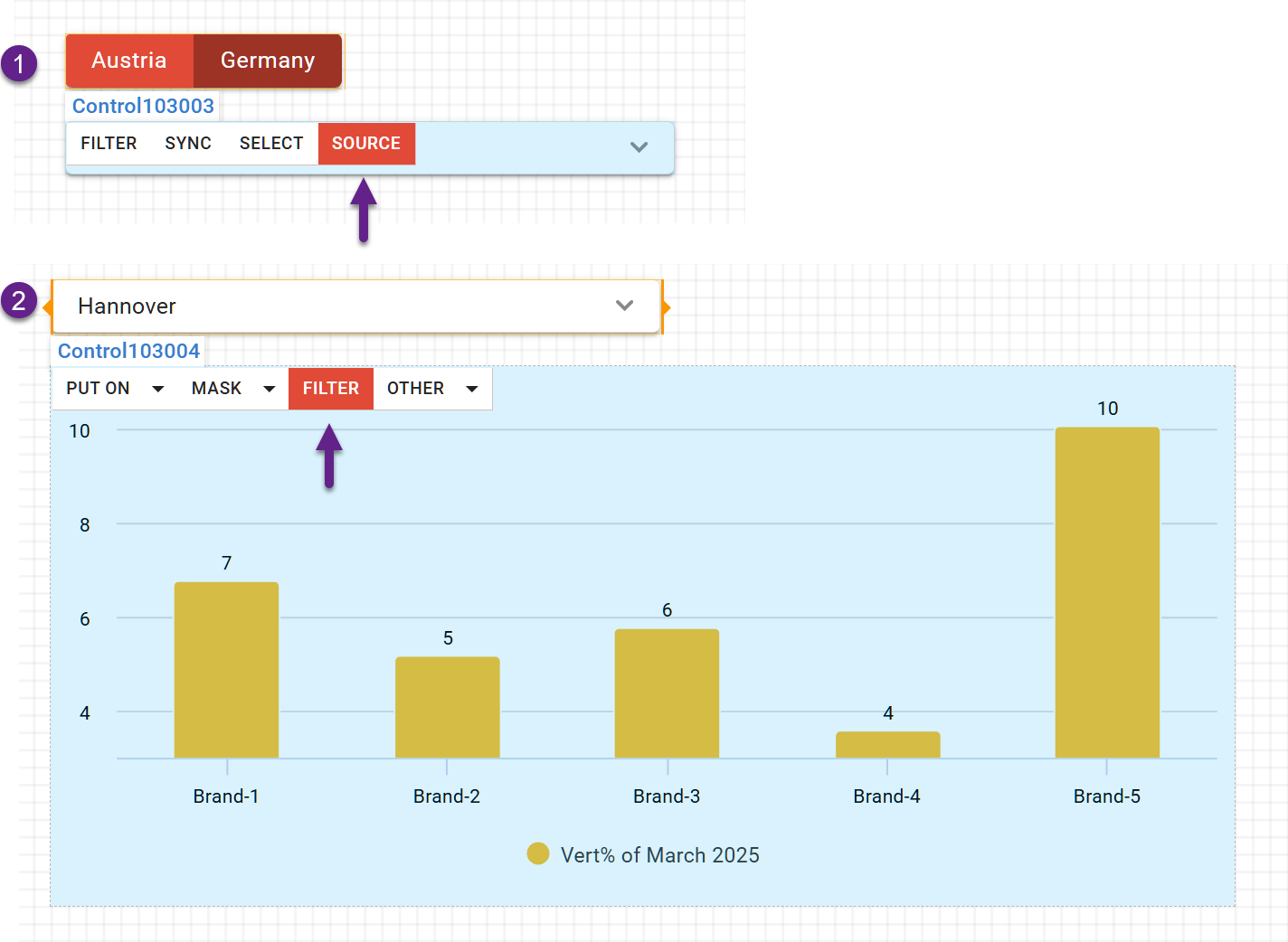
Now in VIEW mode you can check the correctness of its work. Please, see the short screencast demonstrating the Source control in action.
Use Case: source control for ranges
One useful use case for this functionality is controlling the levels of range controls via a Source control, for example, switching between days, months, or quarters.
In this case, you need to define the required ranges in the master control. If these ranges are not present in the dataset by default, you can create them using the segmentation feature in the Meta-Editor.
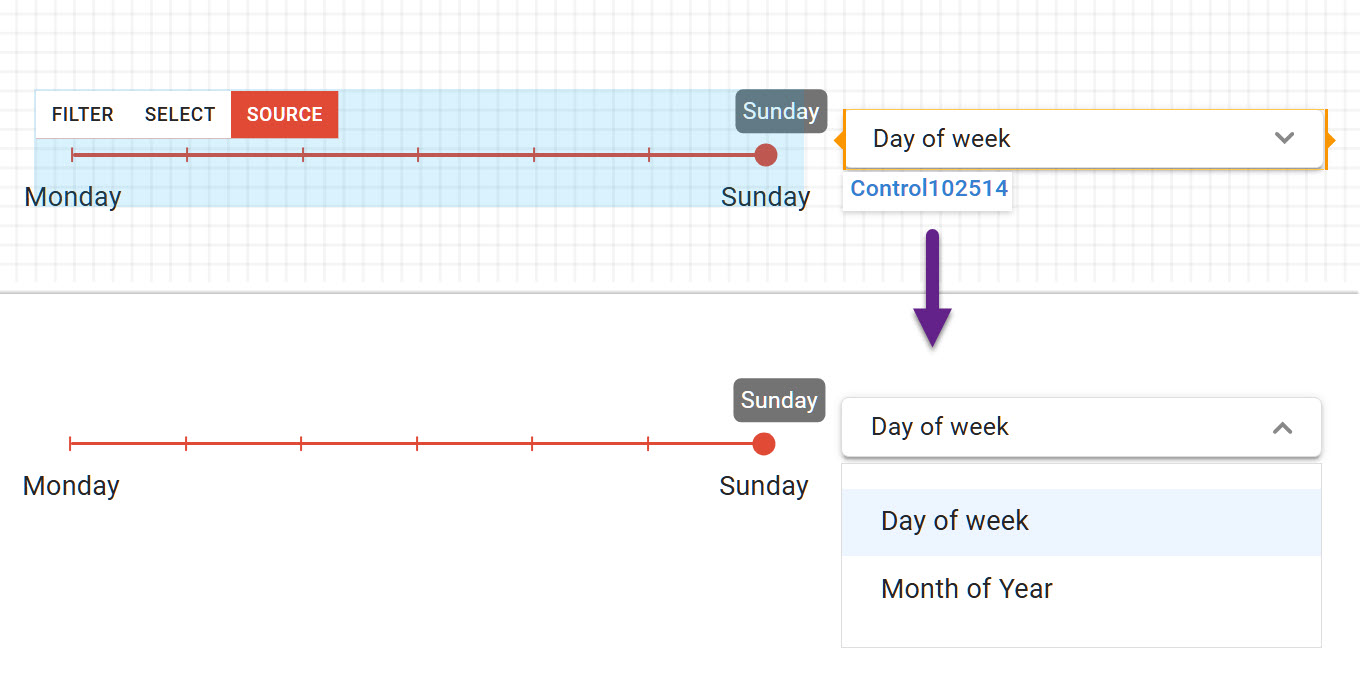
For dependent controls, you can create aliases that will function correctly when assigned to charts.