A proxy collector was created to merge multiple options from different controls into a single one, reducing the number of dashboard controls and simplifying option selection.
The process involves creating the initial controls, using them to collect distinct option combinations into a proxy collector, and then hiding the controls. This way, they remain present and required in EDIT mode, while the dashboard is less cluttered in VIEW mode.
An example: we have three controls that define gender, age group, and monthly income. While all individual controls will still be available, saving combined options (such as 'male, 25–30, low income' or 'female, 40–45, high income') in a proxy collector allows users to select the target audience in a single click, rather than selecting options one by one across all three separate controls.
A proxy collector can contain the most important combinations and keep your audience focused.
How to create a proxy collector
-
In EDIT mode, create the required controls and assign them to the widgets.
-
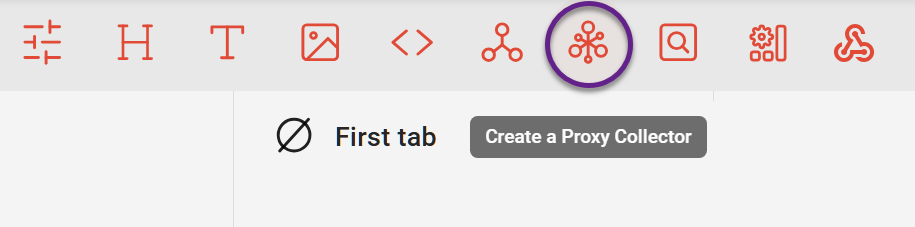
Click the ‘proxy collector' icon in the dashboard’s top menu and create a new proxy collector. Adjust its size and position on the dashboard (we recommend making the proxy collector frame longer for easier editing of combinations).
-
Select each control and click ‘ASSIGN’ on the proxy collector widget to link them.
How to use a proxy collector
Combinations are assembled in the proxy collector in VIEW mode. The proxy collector control features a plus (+) icon to add a new combination.
-
Ensure that the required controls are linked to the proxy collector (if not, switch back to EDIT mode and follow the instructions above).
-
Select the desired options in these controls, then click the plus icon to add the current combination to the collector.
-
Change the options and click the plus icon again to create all necessary combinations, after which the individual controls can be hidden.
-
After the proxy collector is ready, use it like a regular dropdown control.
Proxy collector settings
-
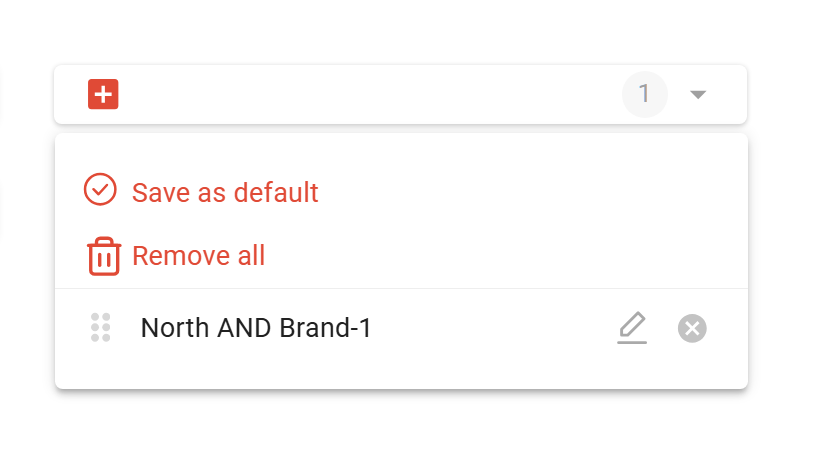
Once combinations are added, the total number of combinations is displayed on the proxy collector.
-
You can delete them all at once or one by one.
-
You can rename combinations for more convenient use.
-
Use "save as default" to show that combination on the dashboard — this combination will be displayed immediately when opening the dashboard in VIEW mode.
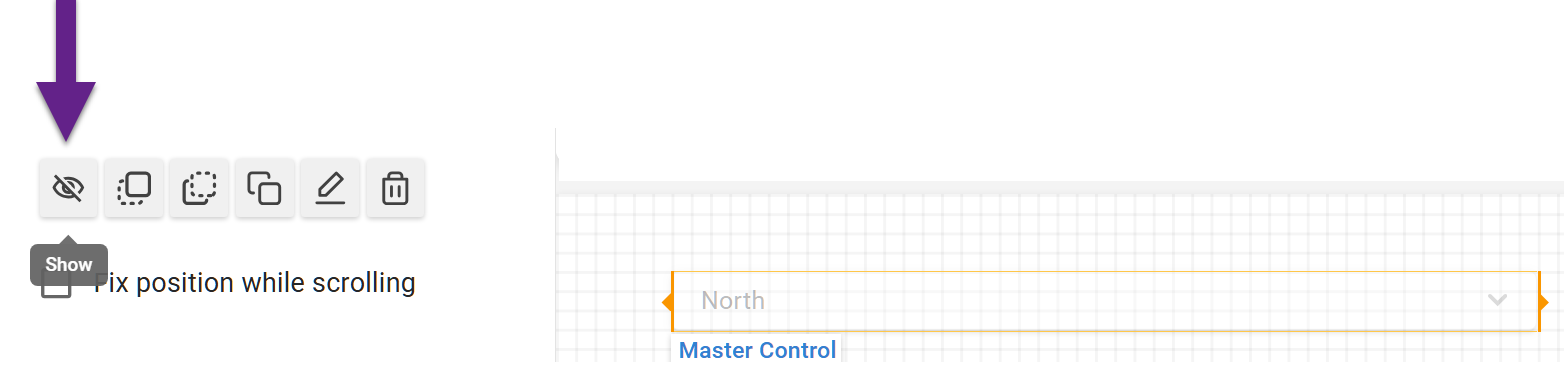
WARNING: Do not delete controls whose options are used in the proxy collector, as they will disappear from the proxy collector as well. Hide controls using the visibility settings in EDIT mode.
Limiting the number of combinations in a proxy collector
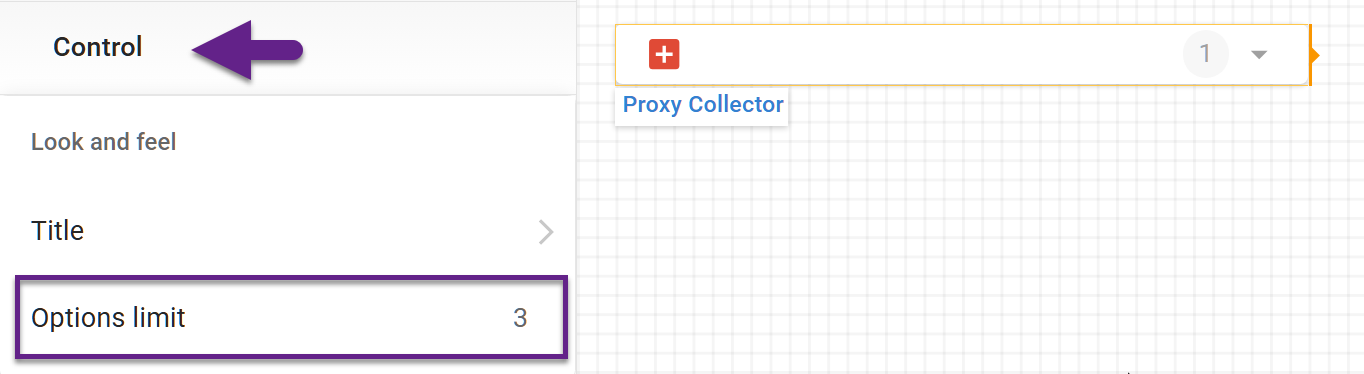
A dedicated setting allows you to limit the number of options in a proxy collector to a specific number. This can be useful when creating dashboards for a specific audience where, for example, only three combinations need to be shown, and increasing that number would create clutter or add unnecessary series to the charts.
In EDIT mode, select the proxy collector and set the options limit in the control menu.