
A report uses the elements of one dashboard tab. To get one PowerPoint file with content from several tabs, create one report per tab and combine them with a report button.
Looking for many slides from one tab, one per control option (for example, one per region)? Use a YAML script instead.
Before you start
-
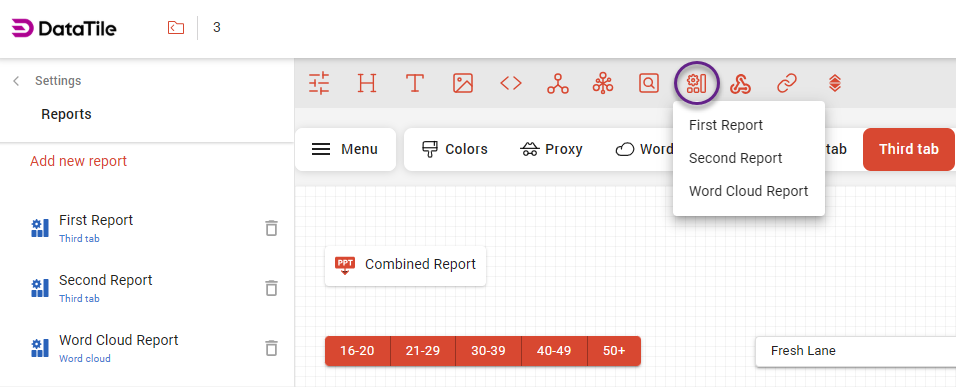
Create a separate report for each tab, and check that each report is on the right tab (left menu → Reports; the tab is shown under each title). See template upload and report export.
-
Use the same slide size in all templates (for example, all 16:9).
Combine the reports
-
In EDIT mode, click the Create a report button icon in the toolbar and choose any of the reports.
-
Select the new button. In the left panel, open Look and feel → Reports.
-
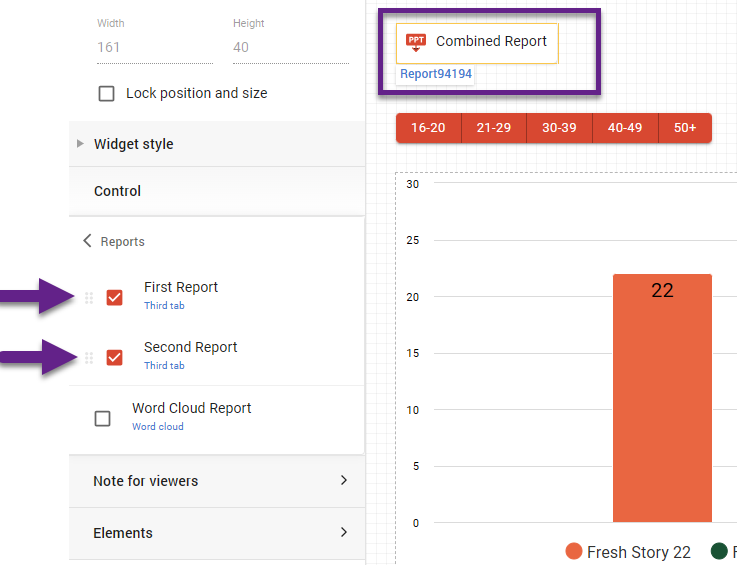
Tick every report the button should include. Untick the ones it should not include. At least one report stays ticked.
-
Put the reports in order. They are added to the file from top to bottom.
-
Change the button's Label (in Look and feel). The button is first named after the first report; a clear label such as “Full report” helps users.
-
Switch to VIEW mode and click the button.
-
A combined report can be downloaded only with the report button in VIEW mode, not from the top menu.
-
Put the button on every tab where users should be able to download the combined report.
Something looks wrong? See troubleshooting.