
This month’s updates focus on making everyday DataTile workflows more efficient and easier to manage. We’ve refreshed several core interfaces, added more ways to organize and find your data, expanded administrative tools, and introduced a few smaller improvements that remove friction from routine tasks.
DataTile Drive UI updates
DataTile Drive has undergone significant improvements.
-
New actions menu
The actions menu is now displayed automatically when you select an entity, rather than being opened with a separate button. The available actions vary depending on the entity type.
The most commonly used actions are also available from the right-click menu for quicker access.
When multiple items are selected, only the ‘Delete’ option is available. -
‘Delete all’ button for the Trash folder.
The button to empty the entire Trash folder is located in the left-hand panel next to the folder label. Now you can delete all files in one click.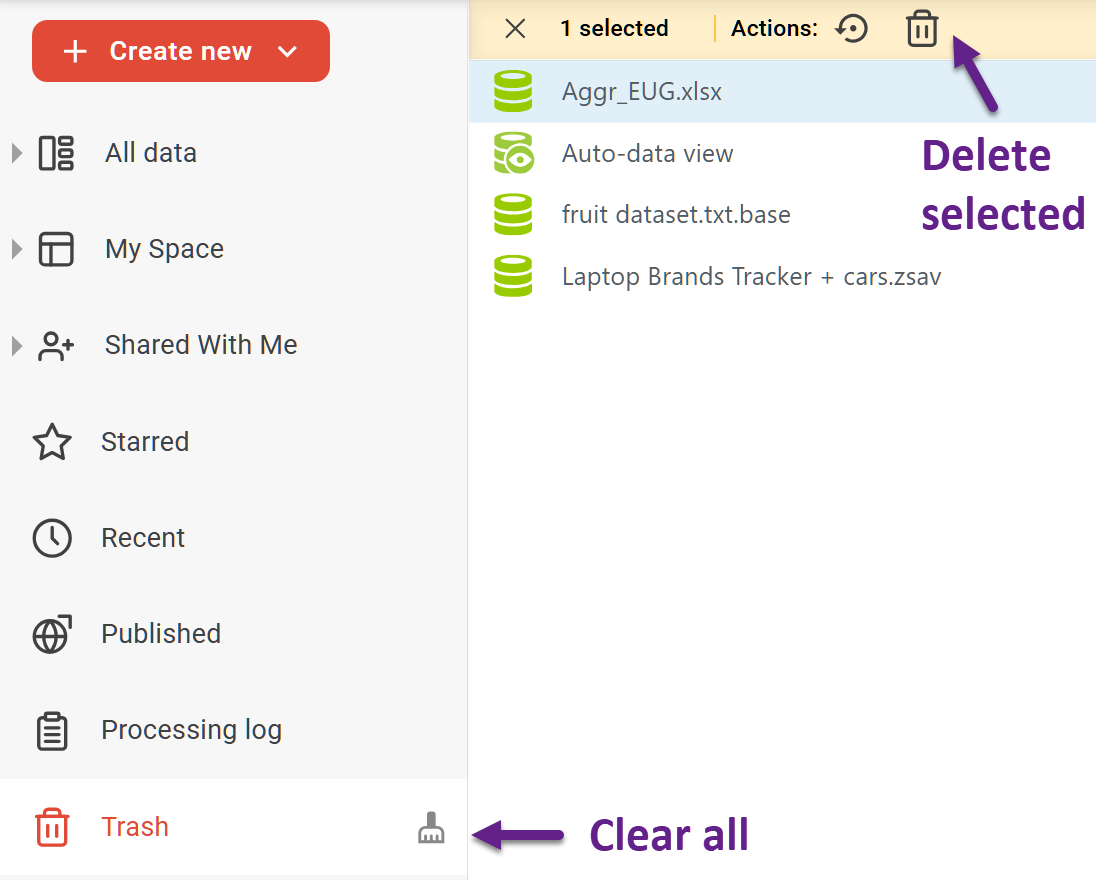
Entity attributes and improved Info panel
You can now add attributes to entities for more precise classification across the server, making it easier to organize, manage, and work with your content. The Info panel has also been improved to provide better access to entity details and metadata.
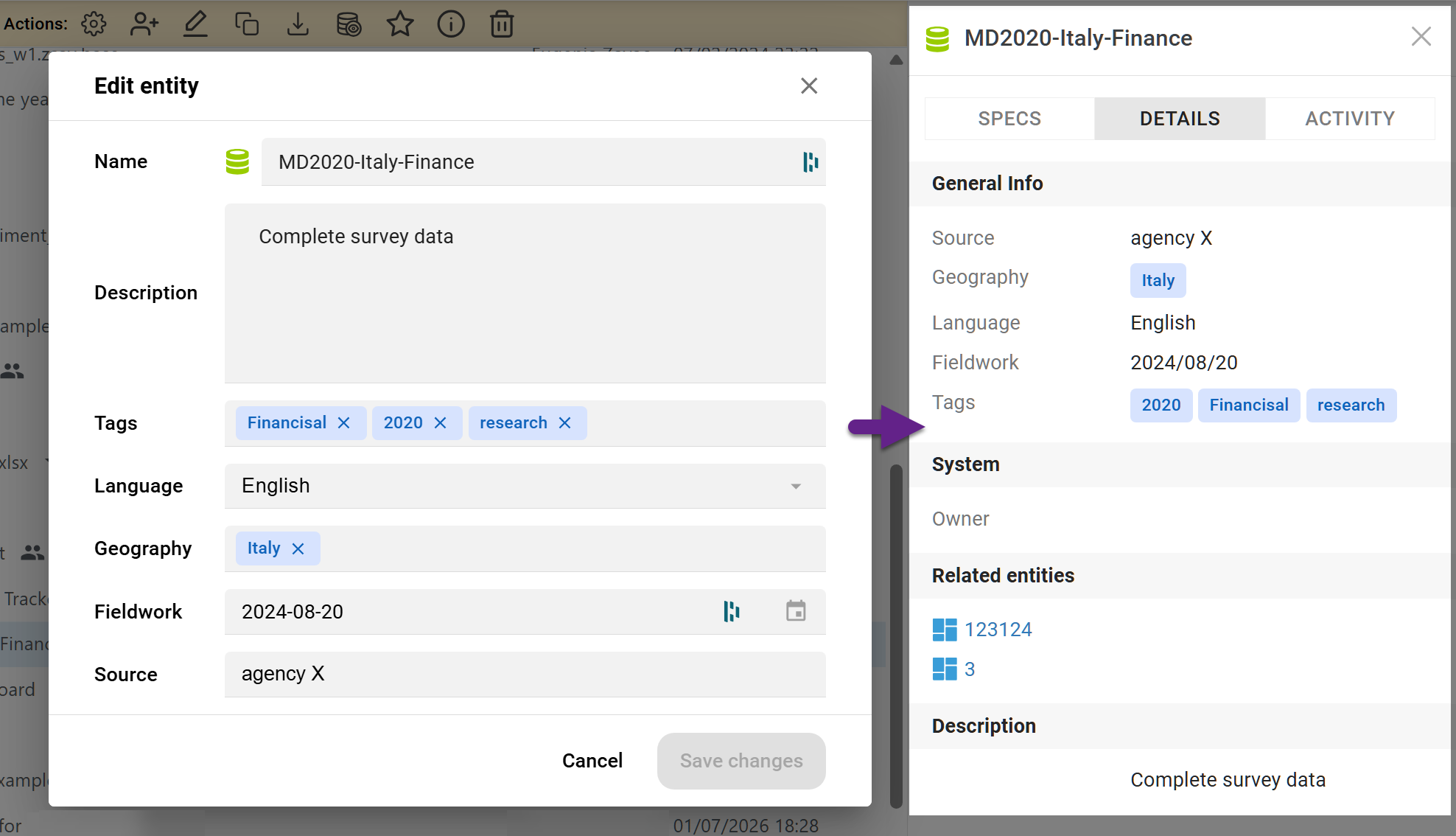
Click Edit in the actions menu to open the entity attributes window.
-
Custom description — an optional free-text field for any additional information about the entity.
-
Tags — tags used to classify and organize entities. You can assign multiple tags to the same entity. Tags are shared across the server and visible to all creators, so we recommend creating a consistent corporate tagging system and sticking to it.
-
Language — the language associated with the entity or its data. The list of available languages can be expanded based on client requests while remaining centrally managed.
-
Geography — countries associated with the entity. You can select multiple countries, which is useful for multi-country studies.
-
Fieldwork dates — specify the fieldwork period manually. These dates are independent of when new waves or files were uploaded.
-
Data source — the source or provider of the data. Use this field to specify where the data comes from, for example, a panel provider, syndicated study, or internal source. Also, the field can be used in any way that works best for your projects.
All these attributes can be seen in the Details tab of the Info panel.
Advanced search
With the introduction of entity attributes, you can now use them as filters in advanced search, rather than relying on keyword search alone.
To open the advanced search panel, click the advanced filters icon on the right side of the search bar.
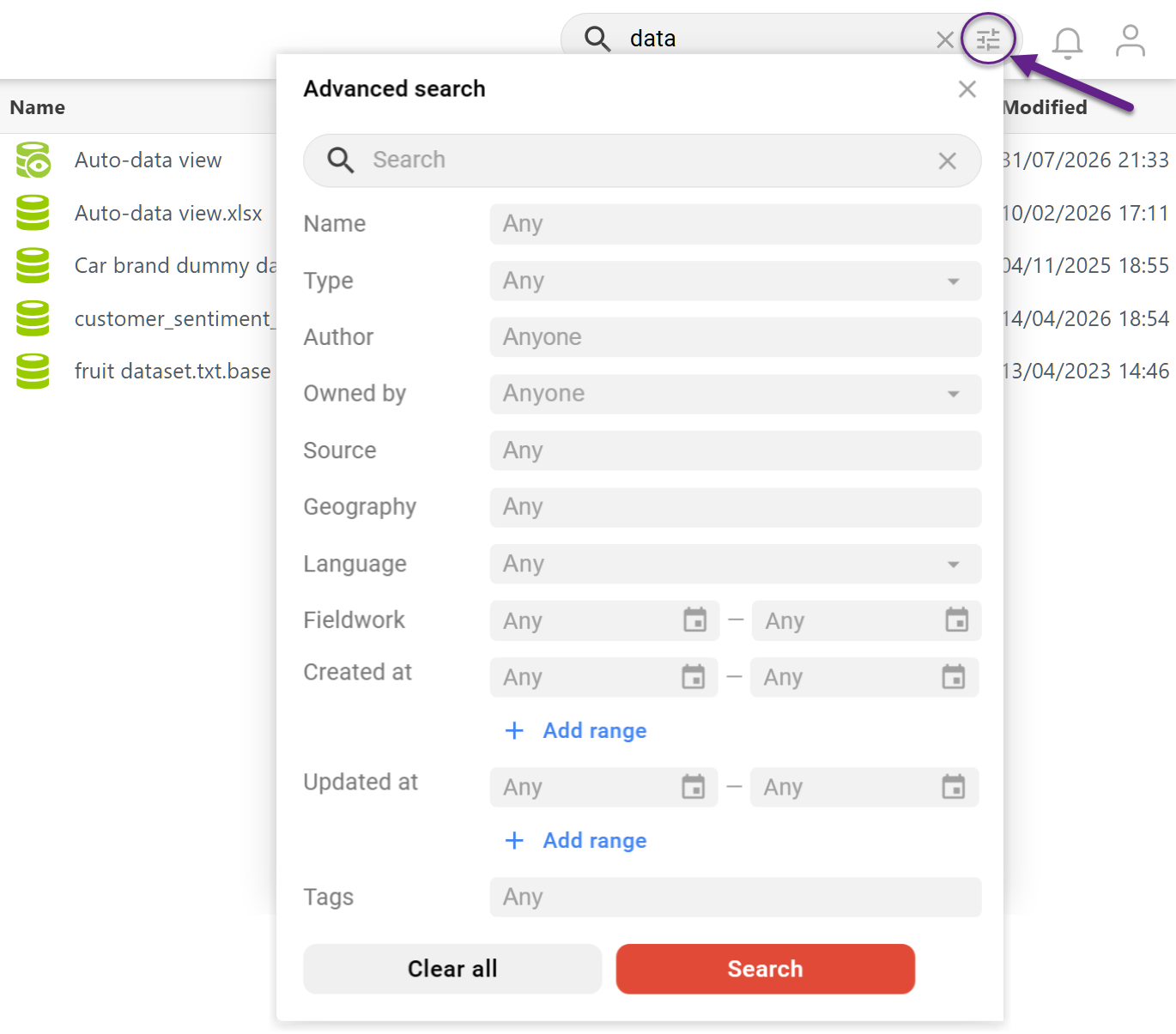
The search is performed within the current folder.
Sort categories by tracking ID in Meta-Editor
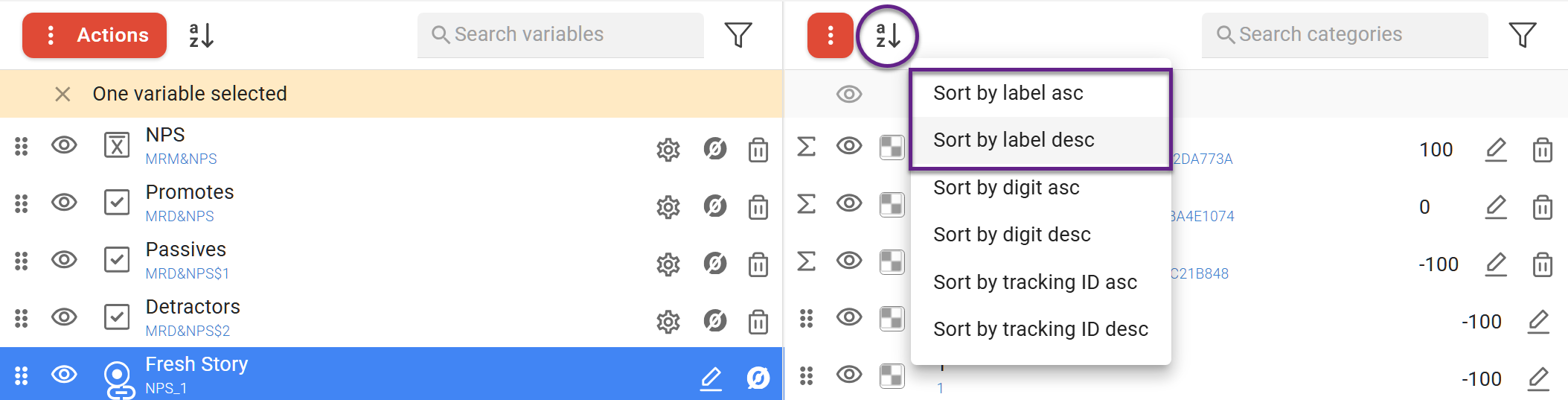
For added convenience, in addition to sorting categories by label and midpoint, you can now sort them by tracking ID.
Improved admin panel and usage tracking
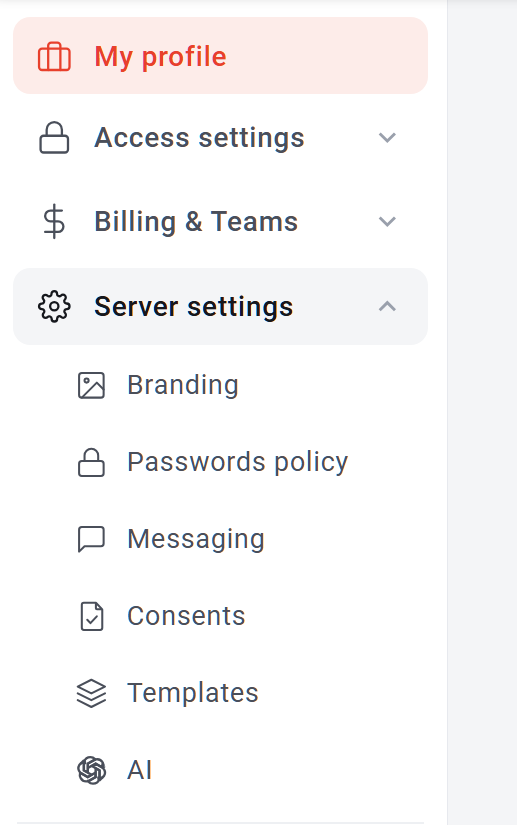
The Admin panel has been updated to make user and billing management easier, especially for servers with a large number of users. The new sectioned navigation provides quick access to all Admin menus, while additional filters and activity data make it easier to find and analyze the information you need.
-
The License section now provides a visual overview of quota usage, making it easier to track current consumption. Notifications are also sent when quota limits are exceeded.
-
Billing history now includes a period filter, allowing you to view usage for the current year, previous year, or all time. When exporting billing history, the export automatically follows the selected period.
-
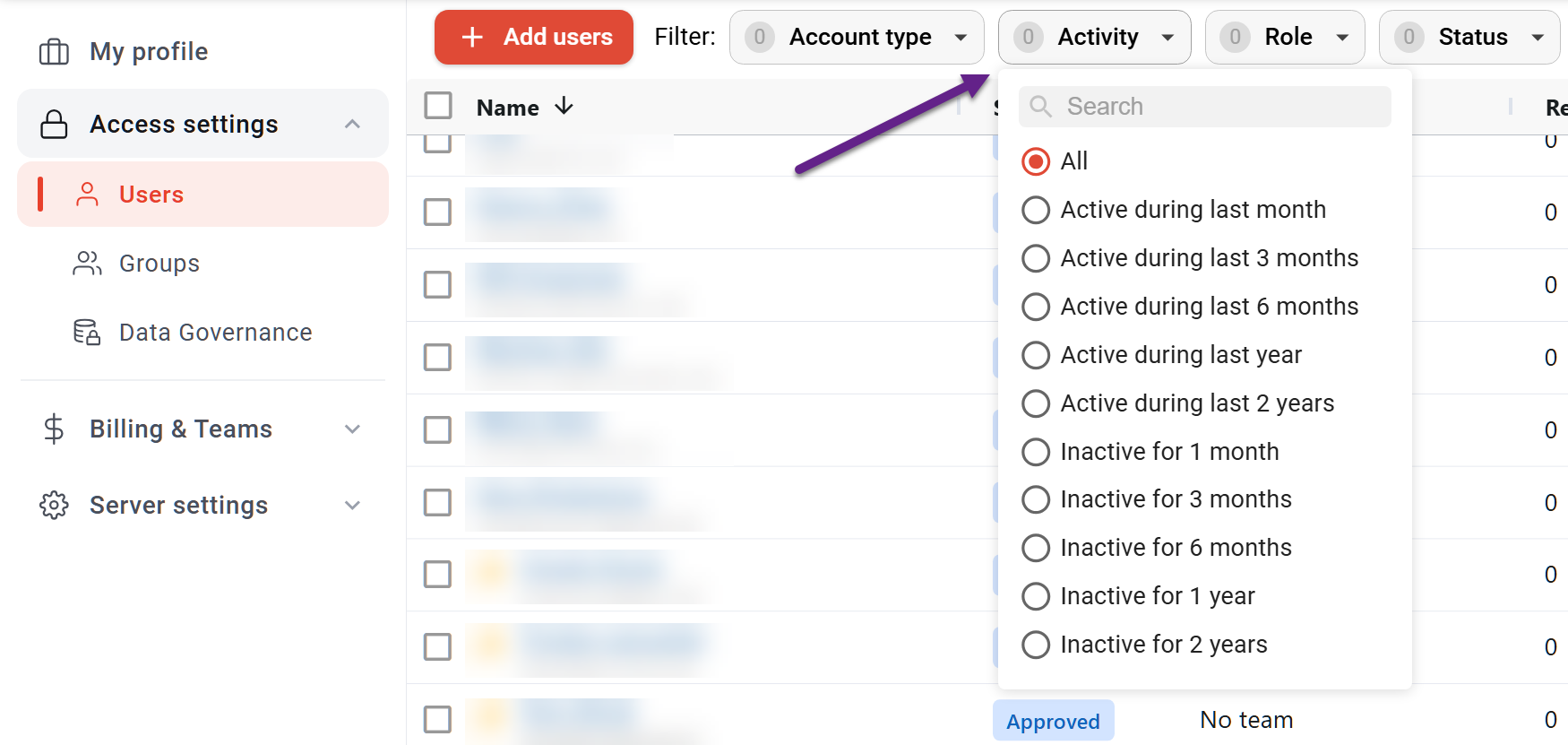
The Users list has also received an updated layout and more flexible filtering. Each parameter can now be filtered separately using multi-select filters, while the new Activity filters help identify users based on periods of activity or inactivity. A new D30d column shows the total session duration for each user over the last 30 days.
-
The User activity log now offers predefined time periods, making it easier to filter users by activity/inactivity for any selected period.
-
Finally, on an individual user's page, the Activity log also displays their 10 most recent actions.
Saving dashboard menu icons in dump copies
When copying a dashboard from one server to another, DataTile now preserves menu icons in addition to the menu itself, charts, and reports.