
You can now place the same numeric variable in multiple folders using symlinks. This feature helps organize complex projects by allowing a variable to appear in different folder structures without creating duplicates.
A symlink is a virtual copy of an original variable that behaves exactly like its source. This feature brings a bunch of benefits:
-
Better organization: Place the same variable wherever it is needed across the Meta-Editor.
-
No duplicates: The system always uses the original variable.
-
Fully synchronized: Any updates to the original variable are automatically reflected in all symlinks.
How to create a symlink
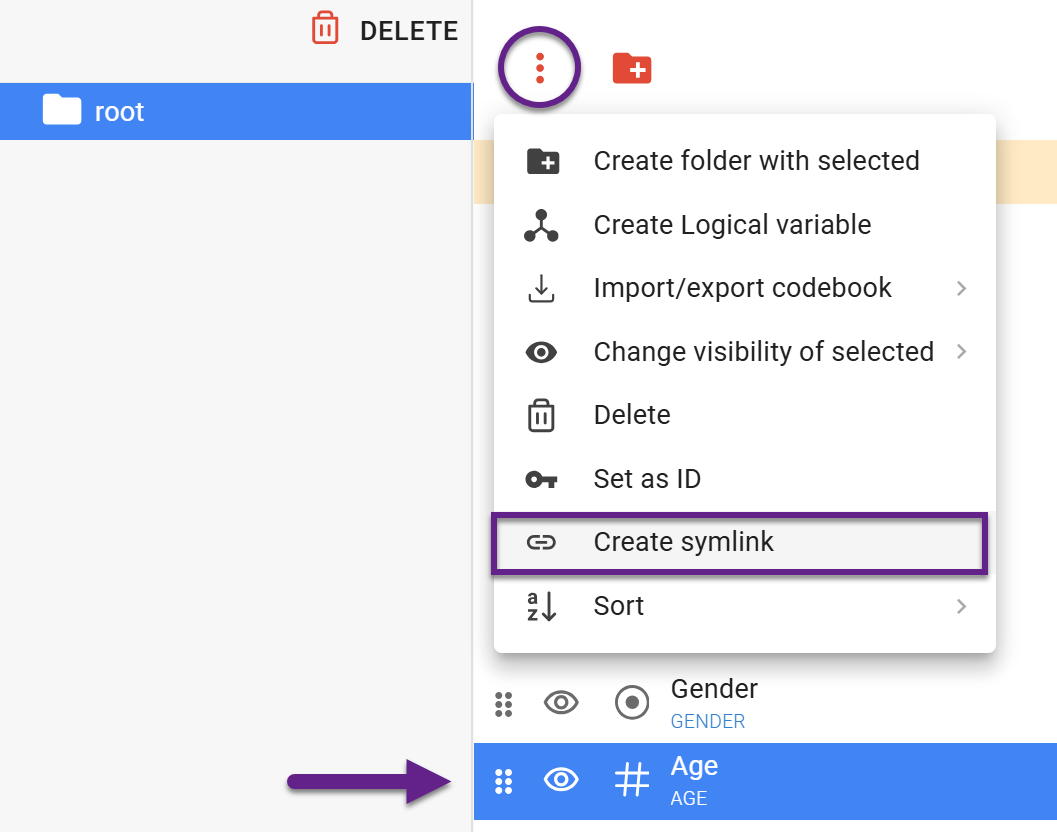
Go to Meta-Editor, select a numeric variable, and in the actions menu, click the ‘Create symlink’ option.
A symlink appears next to the original variable and can be moved afterwards. Symlinks use a modified version of the numeric variable icon.
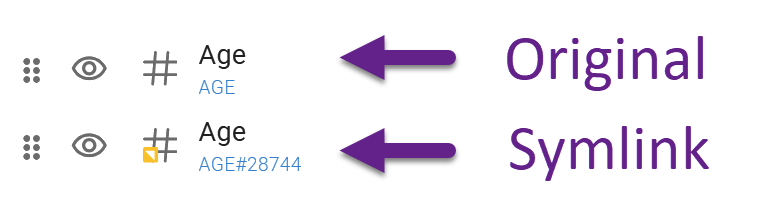
Symlink-Numeric variables connections
-
Symlinks can be deleted, but not edited independently.
-
Renaming a symlink updates the original variable and all related symlinks. The same applies to the source variable itself.
-
New categories added to the source variable also appear in symlinks.
-
If the original variable is removed, related symlinks are removed automatically.